How to Use Twitter: Posts, DMs, Handles, and Settings
How to use Twitter is much easier once you know what each part of the app is actually for. The platform is now officially called X, but many people still call it Twitter because that is the name they used for years.
At first, the app can feel busy. You open it and see posts, replies, reposts, quotes, DMs, handles, feeds, notifications and settings all competing for attention. It is not hard to use, but it can feel confusing when everything appears at once.
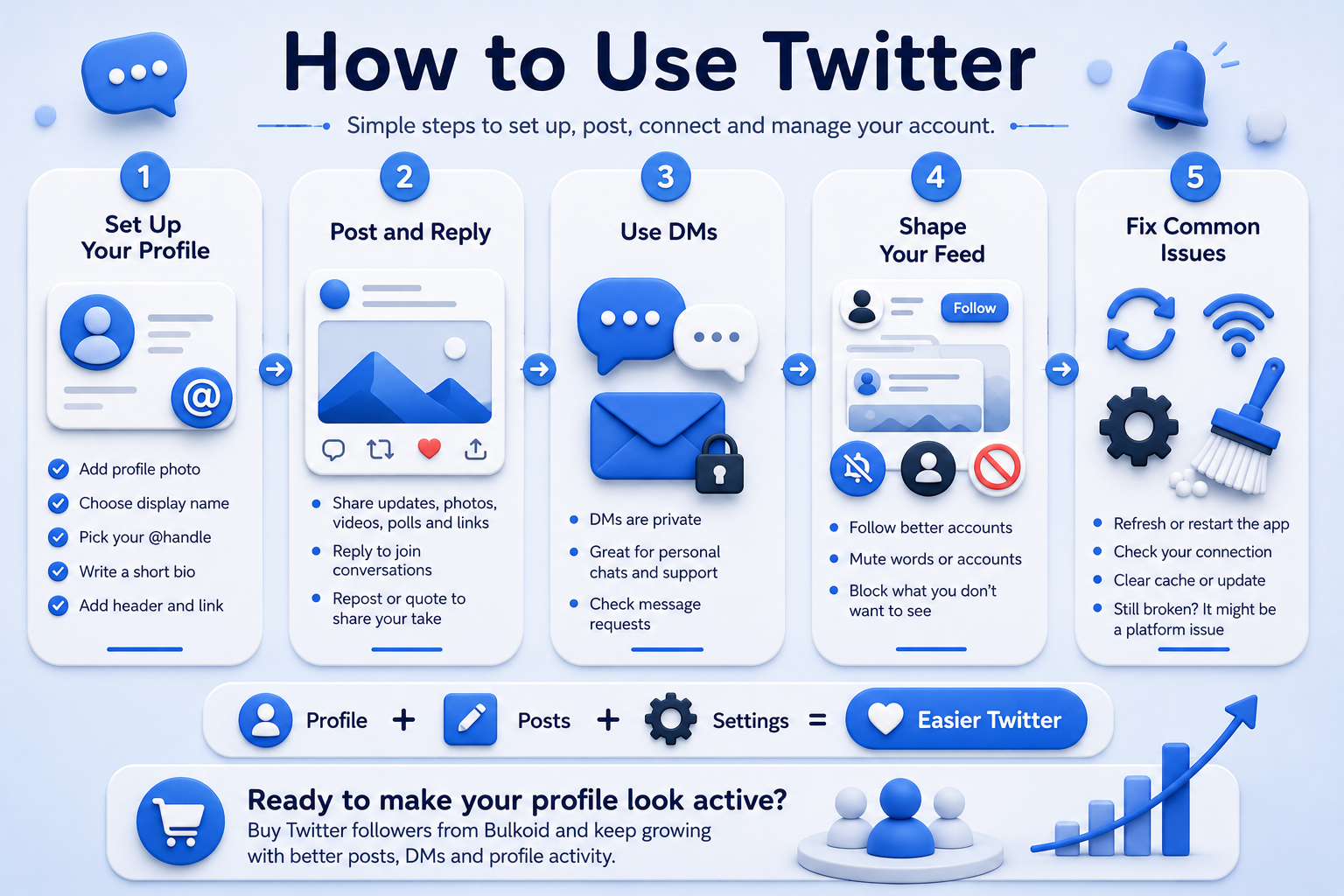
This guide keeps things simple. You will learn how to set up your profile, post, reply, send private messages, understand your handle, follow better accounts and adjust the settings that matter most.
What Is Twitter?
Before learning how to use Twitter, it helps to understand what the platform does. Twitter, now X, is a social media app built around short public posts, fast reactions and real-time conversations.
People use it for news, jokes, opinions, creator updates, brand support, fandoms, memes and live reactions to events. Some users post every day, while others mostly read, search and follow conversations quietly.
A simple way to understand Twitter is this:
-
Posts are public updates you share.
-
Replies are public answers to other posts.
-
Reposts share someone else’s post with your followers.
-
Quotes let you add your own comment when sharing a post.
-
DMs are private messages.
-
Handles are usernames that start with @.
-
Your feed is where posts appear when you open the app.
TechTarget describes X, formerly Twitter, as a social networking and microblogging platform where users share short posts with text, images, videos or links.
That sounds formal, but the everyday version is much simpler. Twitter is where people post quick thoughts, react fast and join public conversations while they are still happening.
How to Set Up Your Twitter Profile
The first step in how to use Twitter is setting up a profile that looks real. You do not need to make it perfect, but people should understand who you are or what your account is about.
Start with the basics:
-
Add a clear profile photo.
-
Choose a display name.
-
Pick a Twitter handle.
-
Write a short bio.
-
Add a header image if you want.
-
Add a website link if it fits your account.
Your display name and handle are not the same thing. Your display name is the name people see first on your profile and posts. Your handle is your username, starts with @ and appears in your profile URL.
Simple example
Display name: Joe Smith
Handle: @joesmith
Your handle matters because people use it to tag you, search for you and visit your profile directly. If your @name feels messy, outdated or too hard to remember, changing your Twitter handle can make your profile look cleaner without changing the rest of your account.
A good profile should not feel empty. Even a clear photo, a short bio and a few recent posts can make your account look more trustworthy.
How the Twitter Feed Works
 A big part of how to use Twitter is understanding the feed. This is the main page you see when you open the app, and it decides what content appears in front of you first.
Twitter usually gives you two main feed options:
|
Feed |
What it shows |
|
For You |
Recommended posts based on your activity |
|
Following |
Posts from accounts you chose to follow |
The For You feed can feel random at first because Twitter is still learning what you like. If you click on drama, argue in replies or watch a lot of viral content, the app may show you more of that. If you interact with creators, topics and accounts you actually enjoy, your feed usually becomes more useful over time.
The Following feed is often calmer because it focuses on accounts you picked yourself. If the For You feed feels too messy, switch to Following for a cleaner scroll.
Your feed is shaped by small actions. Likes, replies, reposts, follows, mutes and blocks all teach Twitter what to show you next. That means you are not only scrolling. You are also training the app every time you engage with something.
How to Post on Twitter
Learning how to use Twitter also means learning how to post. A post is the main type of content on the platform. Older users may still call it a tweet, but X now uses "post" in many places.
To post on Twitter:
-
Tap or click the compose button.
-
Write your message.
-
Add a photo, video, GIF, poll or link if needed.
-
Read it once before posting.
-
Tap or click Post.
You can post thoughts, updates, jokes, questions, links, images, videos, polls or quick reactions to something happening online. The best posts are usually easy to understand without making people work too hard.
Good beginner posts can include:
-
A short opinion on something you care about
-
A question for your followers
-
A quick update about your work or project
-
A useful link with a clear reason to open it
-
A photo or video with a short caption
-
A reaction to a topic that fits your account
Try not to overload every post with hashtags. One or two useful hashtags can help, but too many can make the post look messy. The same goes for tagging people. Tag someone only when it makes sense.
If you want people to reply, ask something specific. If you want people to click a link, tell them why it is useful. If you want to share an opinion, make the main point clear.
How Replies, Reposts, Quotes and Likes Work

Another important part of how to use Twitter is knowing what each interaction button does. These buttons look small, but they affect how your activity appears to other people.
A reply is a public answer to someone’s post. A repost shares someone else’s post with your followers. A quote lets you share a post with your own comment. A like shows that you reacted to the post. A bookmark saves the post privately so you can find it later.
Here is the easy way to remember it:
-
Reply when you want to join the conversation.
-
Repost when you want to share something as it is.
-
Quote when you want to add your own opinion.
-
Like when you want to react.
-
Bookmark when you want to save something for yourself.
This is where beginners often get mixed up. A reply is not the same as a DM. If you reply to someone’s post, other people can usually see it. If you want the conversation to stay private, use Direct Messages instead.
Reposts and quotes also show people what kind of content you share. If you are using Twitter for a brand, creator account or public profile, it is worth being careful with what you repost, quote and like.
How to DM on Twitter
How to use Twitter privately comes down to DMs, which means Direct Messages. DMs let you send private messages to another account without posting publicly on your profile.
You can use DMs to talk to friends, contact creators, ask brands for support, send links privately or continue a conversation that should not happen in public replies.
To send a DM:
-
Open the Messages tab.
-
Start a new message.
-
Search for the account you want to contact.
-
Write your message.
-
Send it.
DMs are useful, but they depend on settings. Some accounts accept messages from anyone. Others only accept DMs from people they follow or accounts that meet certain platform rules.
If private messages are not working the way you expect, your Twitter DM settings may be limiting who can contact you or where new messages appear.
A few common DM issues include:
-
The message button is missing.
-
Your message goes to requests.
-
The person does not accept DMs from everyone.
-
The app is glitching.
-
Your account has a temporary limit.
The main thing to remember is simple. Replies are public. DMs are private. If you are sharing personal information, a private question or anything sensitive, do not put it in a public reply.
How to Follow People and Find Better Content
 Knowing how to use Twitter is not only about posting. It is also about choosing what you want to see when you open the app.
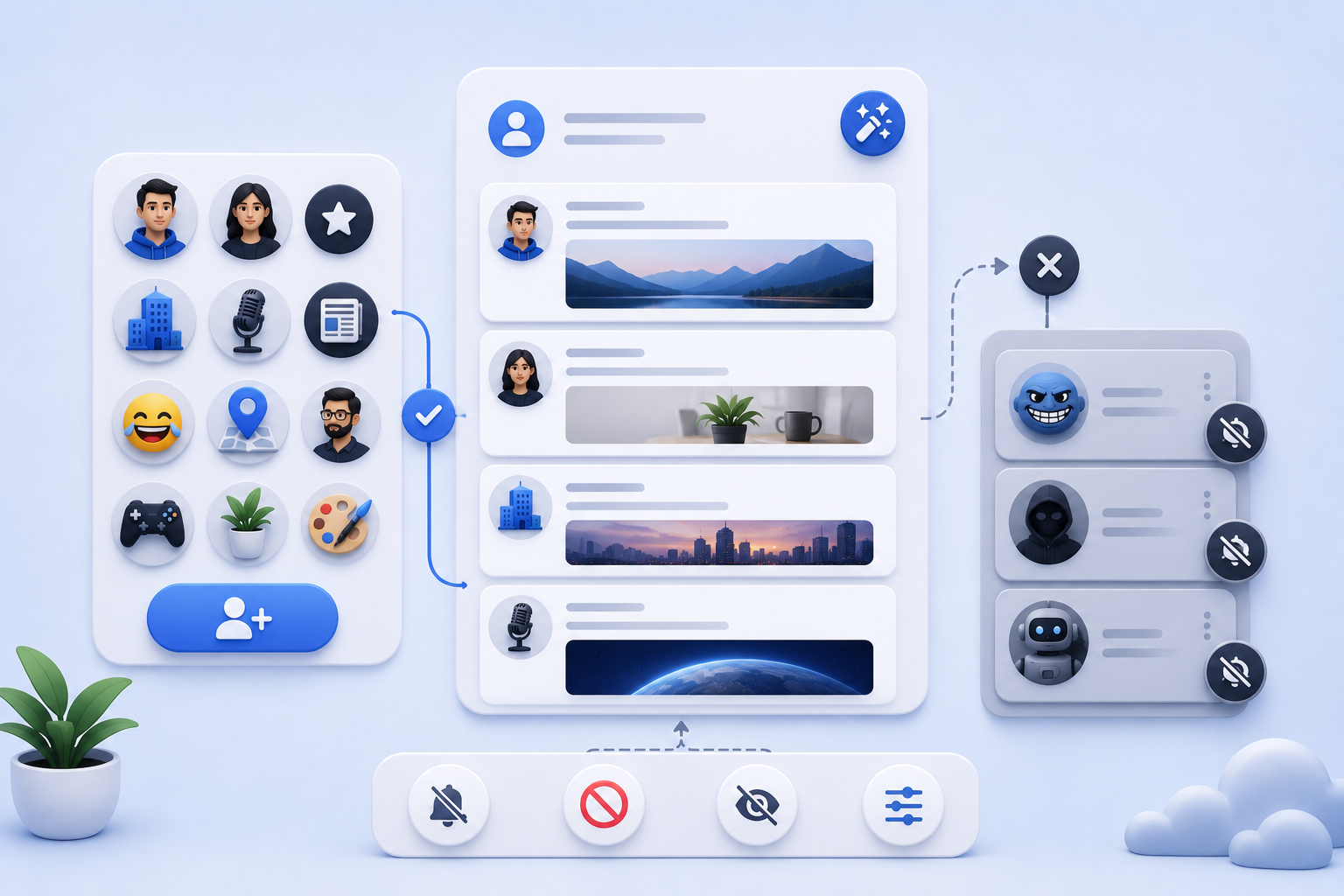
Following the right accounts makes Twitter more useful. Following random viral accounts can make it noisy very quickly. That does not mean you need a perfect feed, but you should be a little picky.
You can follow:
-
Friends
-
Creators
-
Brands
-
News accounts
-
Meme pages
-
Local accounts
-
Industry experts
-
Hobby communities
-
People with useful opinions
A good mix makes the feed feel more balanced. You might follow news accounts for updates, creators for ideas, friends for personal posts and niche accounts for hobbies or work.
You can also unfollow accounts when they stop being useful. That is not dramatic. It is just part of keeping your feed readable.
Make your feed better by doing small things often:
-
Follow accounts that post things you actually want to see.
-
Mute words or topics that annoy you.
-
Block accounts that harass or spam you.
-
Avoid engaging with posts you do not want more of.
-
Use the Following feed when For You feels too chaotic.
Twitter can be fun, useful and genuinely good for finding fast updates, but only if you shape the experience instead of letting the app throw everything at you.
Basic Twitter Settings Beginners Should Check
A big part of how to use Twitter safely is checking your settings early. Many people ignore settings until something goes wrong, but a few small changes can make the app much easier to use.
Start with privacy and safety. You can decide who sees your posts, who messages you, who tags you in photos and what kind of content appears in your feed.
Settings worth checking:
-
Privacy and safety: Controls who can see and interact with your account.
-
Protected posts: Makes your posts visible only to approved followers.
-
Direct Messages: Controls who can message you.
-
Notifications: Reduces alerts you do not care about.
-
Muted words: Hides words, phrases or topics from your feed.
-
Blocked accounts: Stops certain users from contacting you.
-
Photo tagging: Controls who can tag you in images.
-
Sensitive content: Adjusts what type of content you see.
-
Login security: Helps protect your account.
If you use Twitter for personal updates, privacy settings matter a lot. If you use it for a creator account, business profile or public page, you may want more visibility, but you should still control messages, tags and notifications.
The goal is not to hide everything. The goal is to make Twitter easier to use without feeling like the app is constantly interrupting you.
Common Twitter Problems and Quick Fixes
Even after you learn how to use Twitter, the app can still act weird sometimes. Posts may stop loading, images may not appear, DMs may feel delayed or the feed may show old content.
Most common problems have basic fixes. You do not need to panic or change your whole account setup because the app glitches once.
|
Problem |
What to try first |
|
Feed will not refresh |
Close and reopen the app |
|
Images do not load |
Check your internet connection |
|
DMs are missing |
Look in message requests |
|
App feels slow |
Update the app or clear the cache |
|
Old posts keep showing |
Refresh the feed or restart the app |
|
Features look different |
Check if the app updated |
If the app feels slow or keeps showing old content, clearing your Twitter cache can help refresh the app without changing your account.
You can also try updating the app, restarting your device or logging out and back in. If many people are having the same problem at the same time, it may be a platform issue rather than something wrong with your account.
Start with the easiest fixes first. If the problem keeps happening, then check settings, app updates or account restrictions.
Building a Twitter Profile People Want to Follow
Once you know how to use Twitter, the next step is making your profile look worth following. This does not mean you need to post every hour or act like a huge creator. It just means your account should feel active, clear and real.
People often make quick decisions when they visit a profile. They look at your photo, bio, handle, recent posts and follower count. If the account looks empty or unfinished, they may leave before reading much.
A stronger profile usually has:
-
A clear profile photo
-
A short bio that explains the account
-
A handle that is easy to remember
-
Recent posts
-
A consistent topic or style
-
Some visible activity
Follower count can also affect first impressions. It will not replace good content, but it can make a profile look more established, especially when someone is seeing your account for the first time.
For users who have already set up their profile and started posting, choosing to buy Twitter followers from Bulkoid can support early growth and make the account feel less empty to new visitors.
Think of it as a profile boost, not the whole strategy. If the account still looks unfinished, followers alone will not do much. If the profile already has a clear bio, useful posts and a steady style, that extra social proof can make people take a second look.
Final Thoughts
 Learning how to use Twitter becomes much easier once you break the app into smaller parts. You do not need to understand everything at once. Start with your profile, then learn how posts, replies, reposts, DMs, handles, feeds and settings work.
The most useful thing you can do is make the app fit your needs. Follow better accounts, check your privacy settings, use DMs when a conversation should be private and keep your profile clear if you want people to follow you.
Twitter, now X, can feel noisy at first, but it is still useful when you know how to control the basics. Once you understand how to use Twitter in a practical way, the app becomes much easier to read, post on and manage.
👉 Ready for your profile to stop looking empty?
Once your bio, handle and first posts are in place, you can buy Twitter followers from Bulkoid to give your account a stronger first impression.
Build the social proof, then keep people around with posts, replies and DMs that make your profile worth following.