How Can I Update Instagram? Quick Guide for iPhone and Android

Instagram updates can feel a bit random. One day your friend has a new Reel feature, a different DM layout or a fresh Story tool, and your app looks exactly the same as it did last week.
So, how can I update Instagram? The fastest way is to update the app through the App Store on iPhone or Google Play Store on Android. If no update button appears, your app may already be on the latest version available for your device, or the feature may not have rolled out to your account yet.
Here is how to check properly, fix common update problems and understand why Instagram sometimes still looks unchanged after you update it.
The quick answer
If you only need the basic steps, start here.
On iPhone:
-
Open the App Store.
-
Tap your profile icon in the top-right corner.
-
Scroll down to available updates.
-
Find Instagram.
-
Tap Update.
You can also search for Instagram in the App Store. If the button says Open instead of Update, your app is already updated.
On Android:
-
Open the Google Play Store.
-
Tap your profile icon.
-
Go to Manage apps and device.
-
Tap Updates available.
-
Find Instagram and tap Update.
You can also search for Instagram directly in the Play Store and update it from the app page.
Quick tip: If Instagram is not showing under available updates, pull down on the updates page to refresh it. Sometimes the app store does not show new updates until you refresh the list manually.
Why updating Instagram matters
Updating Instagram is not only about getting shiny new buttons. Updates often fix bugs, improve performance and unlock features that may not work on older app versions.
This matters even more if you use Instagram for content, business or creator work. Instagram keeps changing how posts, Reels, carousels and DMs behave.
For example, Instagram has been pushing more attention toward original creators, including an algorithm update that reduces recommendations for accounts that mostly repost other people’s photos and carousels. You can read more aboutInstagram’s algorithm update for original creators if you care about reach and content strategy.
That does not mean every update will change your app overnight. Instagram often rolls features out slowly, tests them with small groups or limits them by region, device or account type. Metricool’sInstagram updates and news tracker shows how often Instagram tests new tools, labels, Story features, Reels changes and creator updates across the year.
So yes, update the app. Just do not panic if your friend gets a feature before you do.
How to update Instagram on iPhone
Updating Instagram on iPhone is usually simple, but the App Store can hide updates if the page has not refreshed.
Open the App Store, tap your profile picture and scroll until you see your pending app updates. If Instagram appears there, tap Update. If you want to update everything at once, tap Update All.
If Instagram does not appear, search for it in the App Store. When the Instagram page opens, check the button next to the app name. If it says Update, tap it. If it says Open, your iPhone already has the latest Instagram version available to you.
If the update gets stuck, restart your phone and try again on Wi-Fi. You should also check your iPhone storage, because app updates can fail when your phone is almost full.
How to update Instagram on Android
On Android, open the Google Play Store and tap your profile icon. Go to Manage apps and device, then open Updates available. If Instagram is listed, tap Update.
You can also search for Instagram in the Play Store. This is often faster. Open the Instagram app page and look at the main button. If you see Update, tap it. If you only see Open, there is no update waiting for your device right now.
Android updates can also get stuck because of weak Wi-Fi, low storage or Play Store cache issues. If the update refuses to start, try restarting your phone first. If that does not work, clear the Play Store cache from your phone settings and check again.
Turn on automatic Instagram updates
If you do not want to check manually every few weeks, turn on automatic updates. This is useful if you use Instagram often and want bug fixes without thinking about them.
On iPhone, go to Settings, tap App Store and turn on App Updates.
On Android, open the Play Store, search for Instagram, tap the three-dot menu on the app page and enable Auto-update. You can also turn on auto-updates for all apps from the Play Store settings.
Just keep one thing in mind. If you use mobile data with a limited plan, choose Wi-Fi updates only. Instagram updates can be fairly large, especially when the app gets new creative tools.
Why Instagram will not update

Sometimes the update button is missing or the update fails. Annoying, yes, but usually fixable.
|
Problem |
What to try |
|
No update button appears |
Your app may already be updated or the update has not reached your device yet |
|
Update is stuck |
Restart your phone and try again on Wi-Fi |
|
Update keeps failing |
Free up storage and check your internet connection |
|
New features are missing |
Wait a few days, because Instagram often rolls features out slowly |
|
App keeps crashing after update |
Clear cache on Android or reinstall the app if needed |
|
DMs are broken |
Check whether it is an app issue, account issue or Instagram outage |
If the main problem is your inbox, messages or disappearing chats, updating the app is only one possible fix. This guide onInstagram Direct Messages not working covers the DM side in more detail.
What if Instagram is updated but nothing changed?
This is the part that confuses most people. You update Instagram, open the app and... nothing looks new.
That does not always mean the update failed. Instagram does not give every account every feature at the same time. Some features appear first in certain countries. Others go to creator accounts before personal accounts. Some are tested with a small group and never get a full release.
You may also see differences because of:
-
Your device model
-
Your operating system version
-
Your account type
-
Your region
-
Instagram’s own testing groups
-
Whether the feature is still being rolled out
This is why two people can sit next to each other, both update Instagram and still see different layouts. It is irritating, but normal.
If you manage content for a brand or creator account, do not wait for every new feature before planning posts. Focus on the parts you can control, like timing, content quality and consistency.
If scheduling is part of your workflow, this guide onhow to schedule Instagram posts can help you stay organised even when the app keeps changing.
Should you delete and reinstall Instagram?
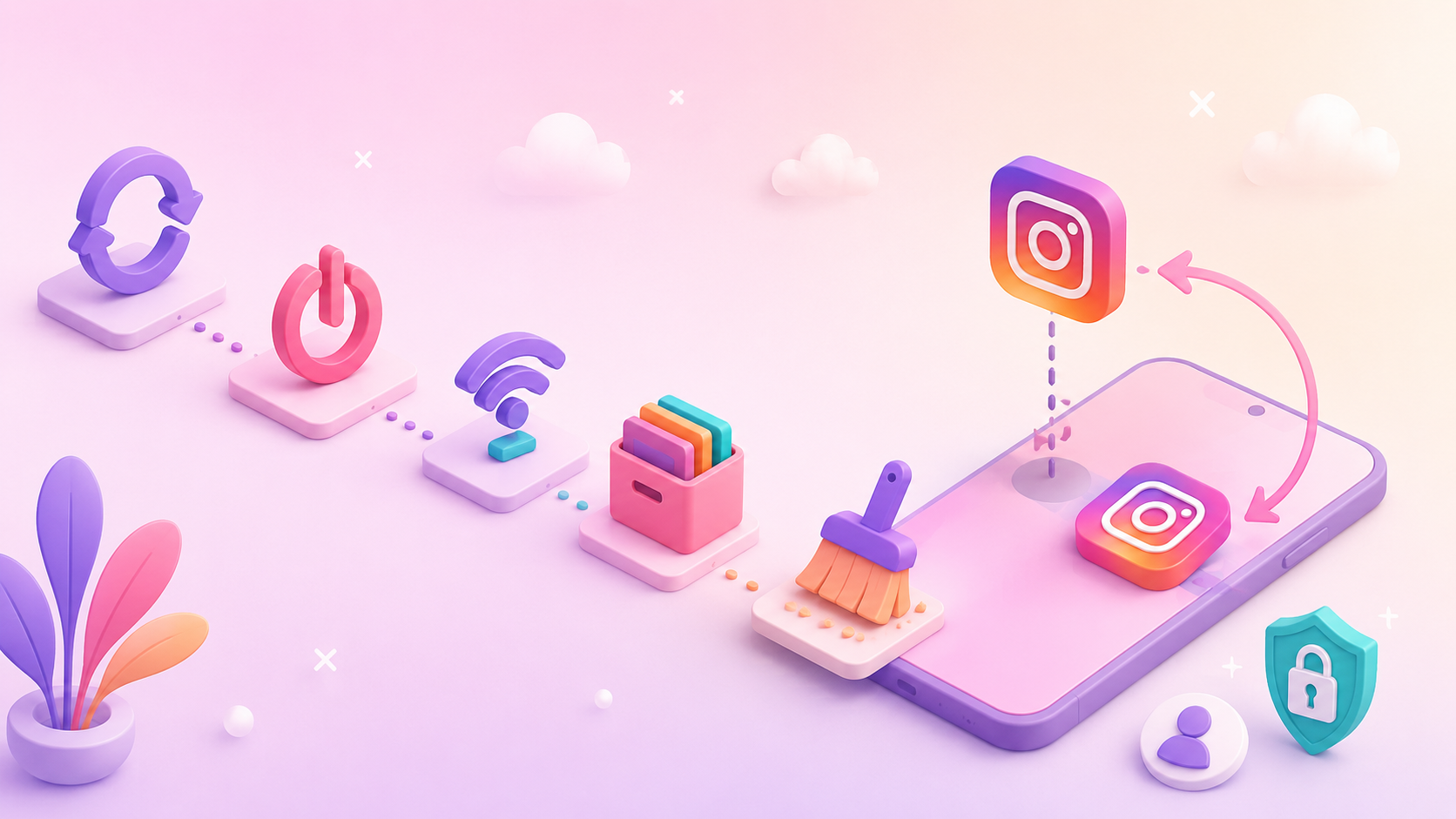

Reinstalling Instagram can help, but it should not be your first move.
Try this order first:
-
Update Instagram.
-
Restart your phone.
-
Check your internet connection.
-
Free up storage.
-
Clear cache if you use Android.
-
Reinstall Instagram only if the app still acts broken.
Reinstalling the app will not delete your account, posts or followers. Those are connected to your Instagram account, not the app file on your phone. Still, make sure you know your login details before deleting the app, especially if you use two-factor authentication.
On Android, you can usually clear the cache without deleting the app. On iPhone, you do not get the same simple cache button for Instagram, so reinstalling is often the cleaner reset.
When updating Instagram is not enough
Keeping Instagram updated helps with bugs, missing features and performance issues, but it will not grow your account by itself. If you post regularly and your content is decent, yet your reach still feels stuck, the issue may be less about the app version and more about momentum.
That is where some creators, small businesses and personal brands look at outside growth support. Used carefully,Bulkoid can help give your Instagram profile a stronger starting push, especially when you already have content worth showing to more people.
This should not replace good posts, a clear style or regular activity. Think of it more like support for the work you are already doing. Update the app so Instagram runs properly, then focus on the signals that make your profile look active, trustworthy and worth following.
The best results usually come when everything works together:
-
Your app is updated and running smoothly.
-
Your profile looks complete and active.
-
Your posts have a clear style.
-
You publish consistently.
-
Your account gets enough early visibility to look alive.
Instagram growth rarely comes from one thing. App updates help the platform work better, but your content and profile activity still do the heavy lifting.
Quick FAQ
Why can’t I update Instagram?
Your phone may not have enough storage, your internet connection may be weak or your device may not support the newest app version. Sometimes the update also has not reached your app store yet.
Why does my friend have a new Instagram feature and I don’t?
Instagram rolls out many features slowly. Your friend may be in a test group, a different region or a different account type.
Does updating Instagram delete anything?
No. Updating the app should not delete your posts, followers, messages or profile. Your account data stays linked to your Instagram login.
How often should I update Instagram?
If automatic updates are off, check every couple of weeks. You should also check for an update if Instagram starts crashing, DMs stop working or new features are missing.

Final thoughts
Updating Instagram is simple, but understanding Instagram updates is a little messier. Start with the App Store or Google Play Store, install any available update and restart your phone if the app still feels buggy.
If nothing changes after that, do not assume you did something wrong. Instagram often releases features in waves, and some updates happen behind the scenes before users see them. Keep the app updated, keep your phone software current and give new features a little time to reach your account.
And once the app is working properly, do not stop there. If your goal is to grow, treat the update as the technical fix, not the whole strategy.
👉 Want your Instagram to feel less stuck?
Keep your app updated, post with purpose and useBulkoid when you want extra support building momentum around your profile.