Switching from Spotify to Apple Music doesn’t mean starting your music library from scratch. If you’ve built playlists over time, losing them is usually the biggest concern.
The good news is you can transfer Spotify playlists to Apple Music in just a few steps. With the right tools, your songs move over quickly and you can keep listening without rebuilding everything by hand.
This guide shows you how to transfer Spotify playlists to Apple Music and how to avoid common issues so the switch feels simple, not stressful.
The Easiest Way to Transfer Spotify Playlists
Manually rebuilding playlists song by song takes time. That’s why most people use a playlist transfer tool when moving from Spotify to Apple Music.
These tools copy your playlists automatically by matching songs across both platforms. Instead of searching for every track again, you connect your Spotify account and let the tool do the work for you.
Once connected, the tool recreates your playlists inside Apple Music. In most cases, the playlist structure stays the same and the transfer only takes a few minutes.
Transfer tools work by matching song titles, artists and albums that exist in both music libraries. While not every track transfers perfectly, most playlists move over with little to no cleanup needed.
This simplicity is one reason many listeners feel more comfortable switching platforms. Conversations around payouts and platform choices continue to grow, including discussions about how Spotify pays artists per stream.
Step-by-Step: How to Transfer a Spotify Playlist to Apple Music
Transferring a playlist doesn’t take long and the steps are almost the same no matter which transfer tool you use.
1. Choose a Spotify to Apple Music Transfer Tool
Start by picking a playlist transfer tool that supports both platforms. Most work directly in your browser or through a mobile app.
2. Connect Your Spotify Account
Sign in and allow the tool to access your playlists. This lets it read your saved songs and playlist data from Spotify.
3. Connect Your Apple Music Account
Next, log in to your Apple Music account and grant permission to create playlists. An active subscription is usually required for transfers to work.
4. Select the Playlist You Want to Move
Choose the Spotify playlist you want to transfer. Some tools let you select multiple playlists, but starting with one is often easier.
5. Start the Transfer
Begin the transfer and wait while the tool matches songs between platforms. This usually takes a few seconds to a few minutes, depending on playlist size.
6. Review the Playlist in Apple Music
Once the transfer finishes, open Apple Music and check your new playlist. Look for missing tracks or mismatches and adjust if needed.
Best Spotify to Apple Music Transfer Tools
Several reliable tools make it easy to transfer your playlists from Spotify to Apple Music. They do the heavy lifting by matching songs across both music libraries.
What to Look for
- Supports both platforms: Spotify + Apple Music
- Good matching accuracy: fewer missing songs
- Free tier available: for small playlists
- Cross-device support: web or mobile
Popular Playlist Transfer Tools
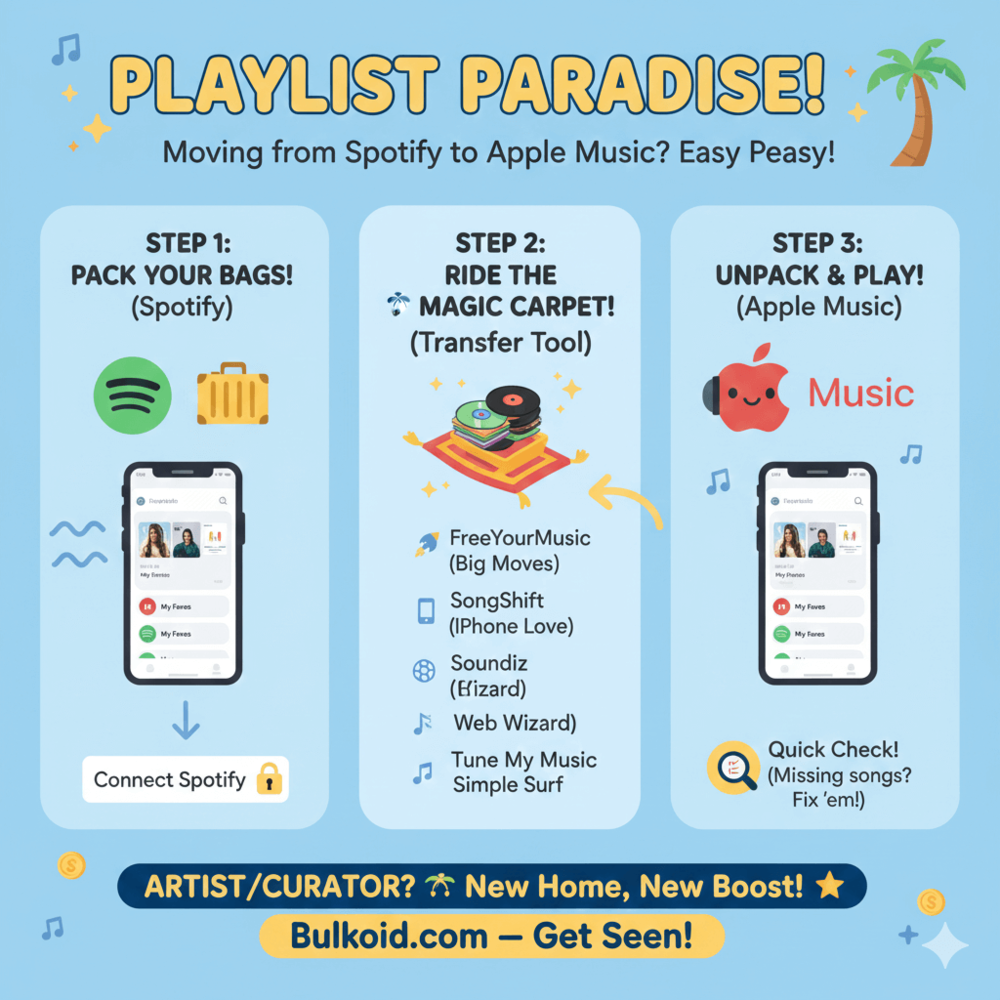
1️⃣ FreeYourMusic (Web/Android/iOS): Works on multiple platforms and is fast at matching large libraries. The free version transfers only a limited number of tracks.
2️⃣ SongShift (iOS): A user-friendly app that works well on iPhone and iPad. You connect both accounts and let it sync playlists with a few taps.
3️⃣ Soundiiz (Web): Runs in your browser and lets you transfer one playlist at a time for free. It also supports batch transfers if you upgrade.
4️⃣ Tune My Music (Web): Simple web-based option that walks you through selecting and moving playlists step by step without installing an app.
Most of these tools offer basic transfers for free. If you’re moving lots of playlists or long lists of songs, a paid plan can make the process smoother.
Common Transfer Issues and Tips to Avoid Them
Most Spotify to Apple Music transfers go smoothly, but a few small issues can pop up. Knowing what to expect makes them easier to fix.
Missing Songs
Some tracks may not transfer if they’re not available in Apple Music’s catalog. This usually happens with region-locked songs, live versions or older releases.
Tip: After the transfer, scan the playlist once and search for any missing tracks manually in Apple Music.
Incorrect Song Matches
Occasionally, a tool may match a song to a different version, like a remix or clean edit.
Tip: This is more common in large playlists. Spot-check a few tracks instead of listening to the whole list from start to finish.
Playlist Order Changes
Some tools don’t preserve the exact song order, especially with older playlists.
Tip: If order matters, choose a transfer tool known for accuracy and avoid transferring multiple playlists at once.
Duplicate Tracks
Duplicates can appear if a song exists in multiple versions or albums.
Tip: Clean up duplicates after the transfer. It’s faster to fix them inside Apple Music than during the transfer itself.
Subscription Requirements
You usually need an active Apple Music subscription to create and save playlists. Transfers won’t complete without it.
Tip: Start the transfer after confirming your Apple Music account is active and logged in.
Most issues are minor and easy to fix. Even if a few songs need attention, transferring playlists is still much faster than rebuilding everything by hand.
After You Transfer: Getting Comfortable on Apple Music
Once your playlists are inside Apple Music, take a few minutes to make sure everything looks right.
Open each playlist, scroll through the tracks and check that the songs you listen to most transferred correctly.
This is also a good moment to compare how Apple Music fits into your routine, especially if you’ve spent time comparing Spotify with other streaming platforms before deciding where to focus.
Spending some time listening, saving songs and adding music to your library helps the platform understand your taste. The more you interact, the better Apple Music becomes at recommending new tracks that fit what you already enjoy.
If you’re still using multiple platforms, this is also a good moment to compare how Apple Music fits into your routine before fully committing to the switch.
Supporting Your Music Growth After Switching Platforms
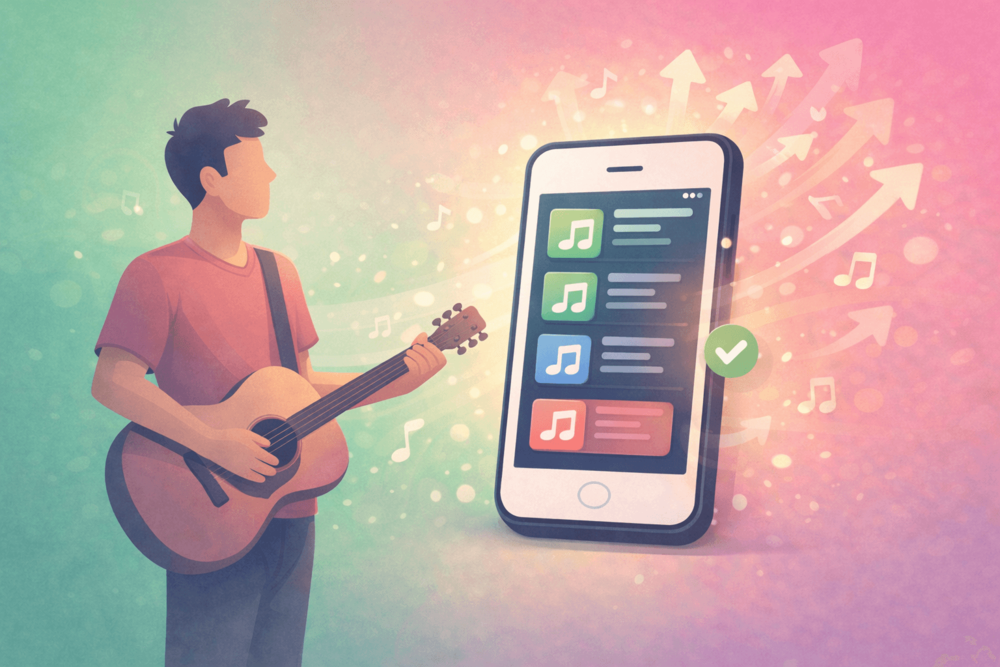
Switching to Apple Music can feel like starting fresh, especially for artists and playlist curators. Even when your playlists transfer smoothly, visibility often needs a boost while the platform learns your profile.
Artists who have already invested time in building steady monthly listeners on Spotify often realize that visibility doesn’t automatically transfer when switching platforms.
That’s where intentional support can help.
Services like Bulkoid are used by creators to support early momentum on a new platform, whether that’s promoting playlists, releases or increasing initial reach.
Bulkoid doesn’t replace organic listening. It supports visibility during key moments, helping your music get discovered while real engagement builds naturally.
Final Thoughts
Moving your Spotify playlists to Apple Music is easy when you know the steps. Your music doesn’t disappear, your playlists stay intact and you don’t have to start over.
But transferring playlists is only step one. If you’re an artist or playlist curator, visibility is what actually moves the needle.
👉 Don’t Let Your Music Sit There Unnoticed
If you’re switching platforms, now is the moment to push. New profiles and playlists need traction or they get buried.
Bulkoid helps your music get seen on Apple Music by supporting early visibility, playlist reach and listener discovery. It’s built for creators who want momentum, not guesswork.