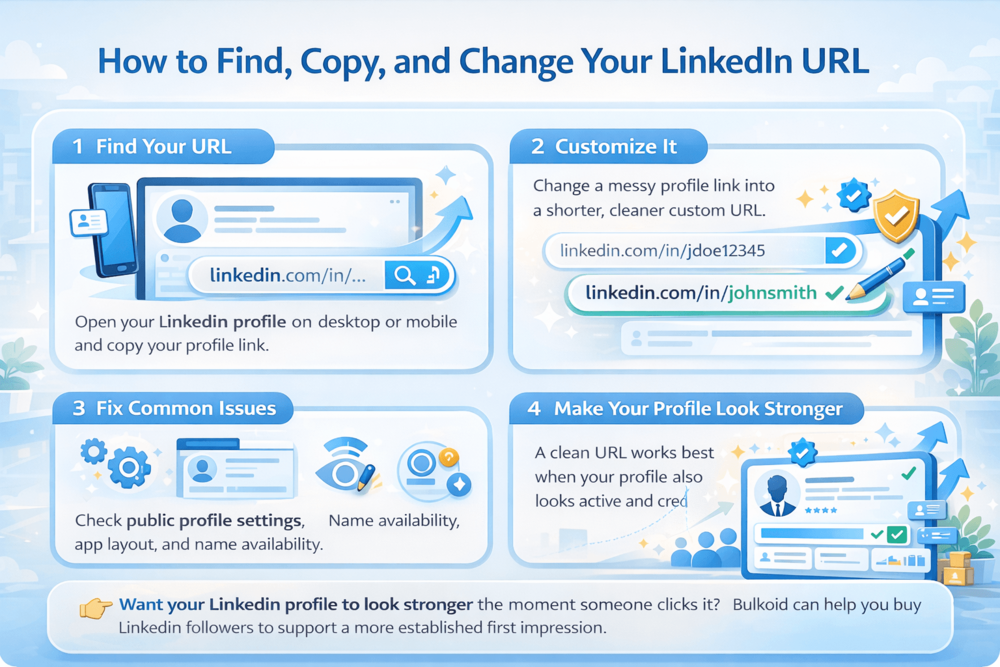
How to get LinkedIn URL is a common question if you want to add your profile to a resume, job application, email signature, or social media bio. Your LinkedIn URL is the direct link to your profile, and you can copy it or customize it to make it look cleaner and more professional.
In this guide, you’ll learn how to get your LinkedIn URL on desktop and mobile, how to copy it, and how to change it into a simpler custom link.
How to Get Your LinkedIn URL on Desktop and Mobile
Finding your LinkedIn URL is simple once you know where to look. The steps are slightly different depending on whether you are using desktop or the mobile app.
On desktop
Log in to LinkedIn and click your profile picture or the Me icon at the top of the page.
From there, open your profile page. Once you are on your profile, look for the option that shows your public profile link.
You can then copy the URL directly from your browser bar or from the profile link area.
On mobile
Open the LinkedIn app and go to your profile.
From there, look for the sharing or profile options section, where you can copy your profile link.
Depending on the app version, the exact layout may look a little different, but the link is still available from your profile page.
What your LinkedIn URL usually looks like
Most LinkedIn profile links follow a format similar to this: linkedin.com/in/yourname
If you have never changed it, your URL may include extra numbers or letters. That is normal, and you can clean it up later by customizing it.
When you might need your LinkedIn URL
People usually look for their profile link when they want to:
- add LinkedIn to a resume
- send their profile to a recruiter
- include it in an email signature
- share it in a portfolio or social bio
Once you have your profile link, the next step is making sure people actually notice the profile behind it, which is why understanding how LinkedIn impressions actually work can be useful too.
How to Customize Your LinkedIn URL and Why It Matters
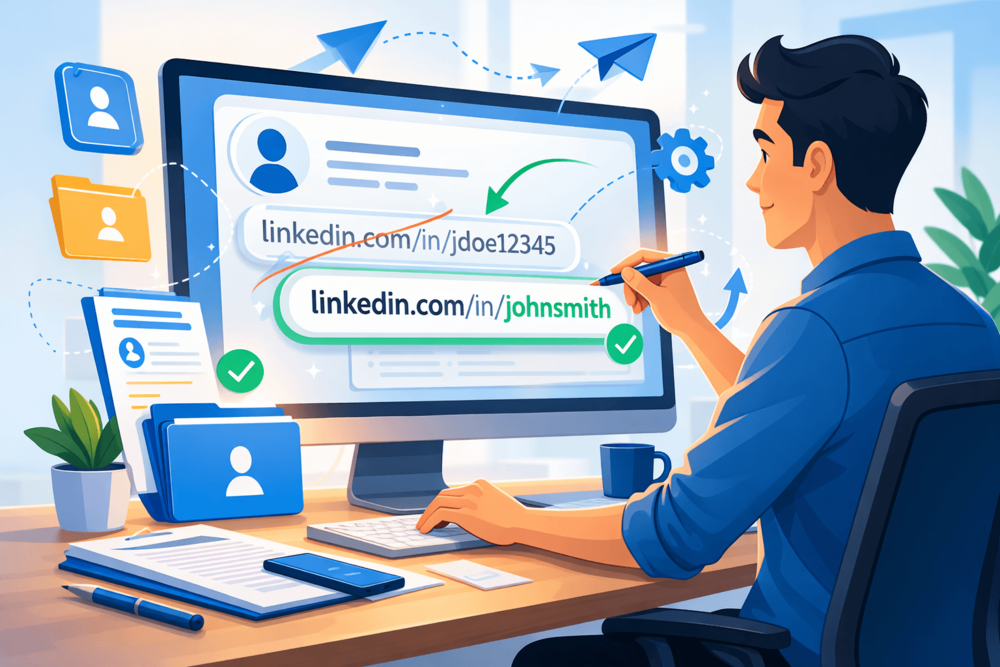
Once you have your profile link, the next step is cleaning it up. A custom LinkedIn URL looks more professional, is easier to remember, and makes your profile look more polished when you add it to a resume, portfolio, or email signature.
If you have never changed it before, your current URL may include random numbers or extra letters. That is not unusual, but it does not look as neat as a personalized version.
How to change your LinkedIn URL
Go to your LinkedIn profile on desktop and look for the option to edit your public profile and URL. From there, you can choose a custom version that better matches your name or professional brand.
A good custom URL is usually:
- short
- clear
- based on your real name
- easy to type and share
For example, a link like: linkedin.com/in/johnsmith looks much cleaner than something with a long string of numbers after it.
A cleaner URL is only one part of profile optimization, and it tends to work best alongside broader improvements based on LinkedIn SEO strategies for higher visibility.
Common Problems and Fixes
Most people can find and copy their LinkedIn URL in a minute or two, but a few common issues can get in the way.
You cannot find your LinkedIn URL
If you are on desktop, check your profile page and look for the public profile link area. On mobile, open your profile and look for the sharing options. If the layout looks different, LinkedIn may have updated the app design, but the profile link should still be available from your profile page.
Your custom URL is already taken
This is very common, especially if you have a common name. Try adding a middle initial, profession, or short keyword that still looks professional.
Your profile is not showing publicly
If your public profile visibility is limited, your link may not work the way you expect. In that case, review your public profile settings and make sure your profile can actually be viewed when shared.
The desktop and mobile versions look different
LinkedIn does not always place the same options in the same spot across devices. If one method feels confusing, try opening your profile on desktop, where editing and copying the URL is usually easier.
These setup details may seem small, but they matter more as LinkedIn keeps putting more emphasis on trust and authenticity, especially now that LinkedIn’s profile verification rollout is accelerating.
Making Your LinkedIn Profile Look More Established
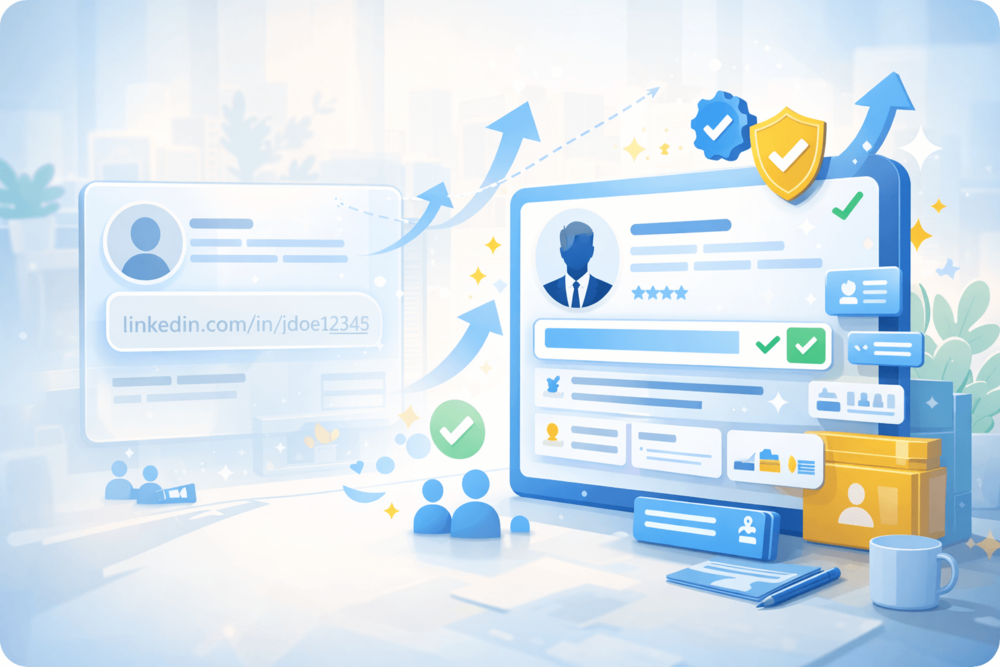
Getting your LinkedIn URL is only the first step. Once people open it, the profile itself needs to look credible.
A clean URL works better when your profile also has:
- a professional photo
- a clear headline
- complete experience details
- some visible activity
If your profile looks empty, the link will not do much on its own.
For some professionals, buying LinkedIn followers can be part of that early visibility push, especially when they want their profile to look more established while they keep building content and connections. It works best as support, not as a replacement for a strong profile.
It can also help to compare that approach with what LinkedIn Premium really gives you, especially if you are thinking about investing in profile growth in different ways.
Once your link is clean and your profile looks active, sharing it becomes much more effective.
Conclusion
Getting your LinkedIn URL is simple, and customizing it makes your profile look cleaner and more professional. It is a small change, but it can make your profile easier to share on resumes, email signatures, portfolios, and job applications.
At the same time, a clean URL works best when the profile behind it looks active and credible. That means improving your photo, headline, experience, and overall visibility so the link leads to a profile that feels worth noticing.
👉 Want your LinkedIn profile to look stronger the moment someone clicks it?
Bulkoid can help you buy LinkedIn followers to give your profile a more established look while you keep building real content, connections, and momentum.