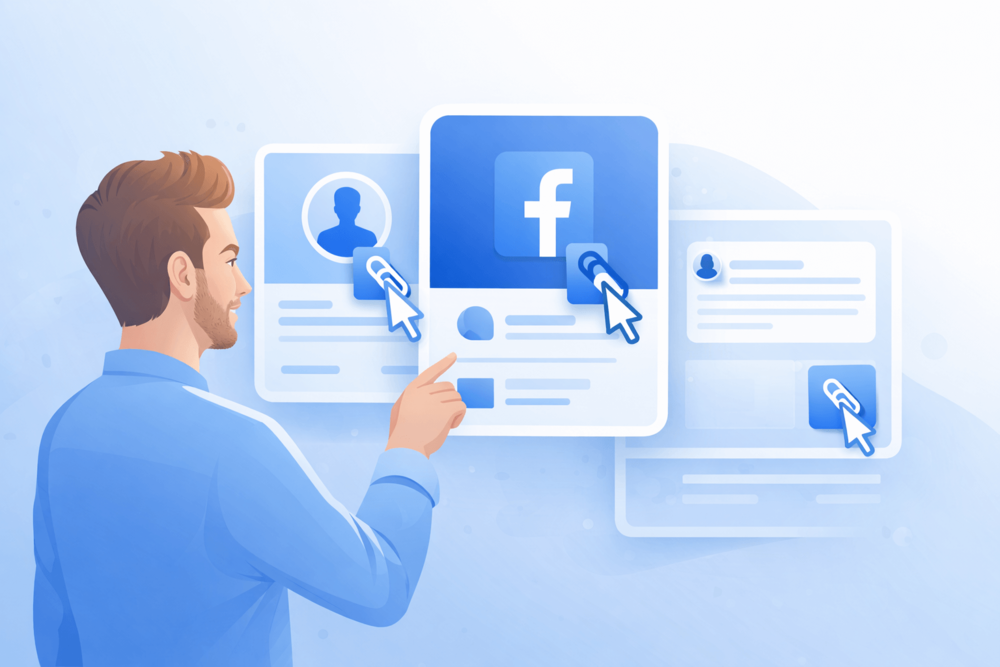
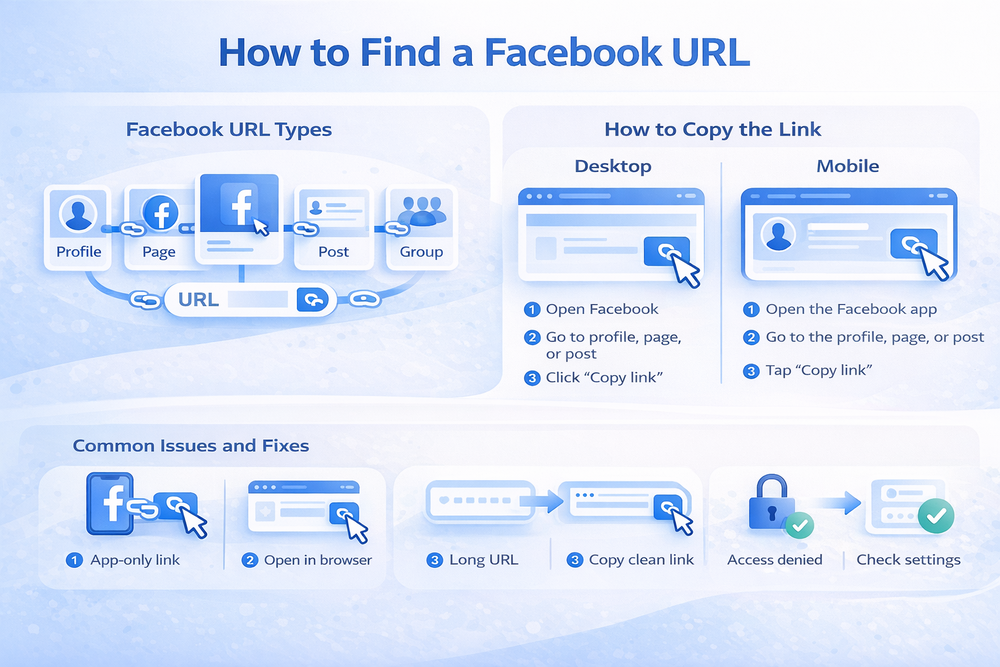
How to find a URL on Facebook isn’t always obvious, especially when you’re switching between profiles, pages, and posts. Facebook hides links behind menus and app layouts, which can make a simple task feel more complicated than it needs to be.
This guide shows you exactly where to look to find and copy the correct Facebook URL on both desktop and mobile, so you can share links quickly without guessing or grabbing the wrong one.
What Is a Facebook URL?
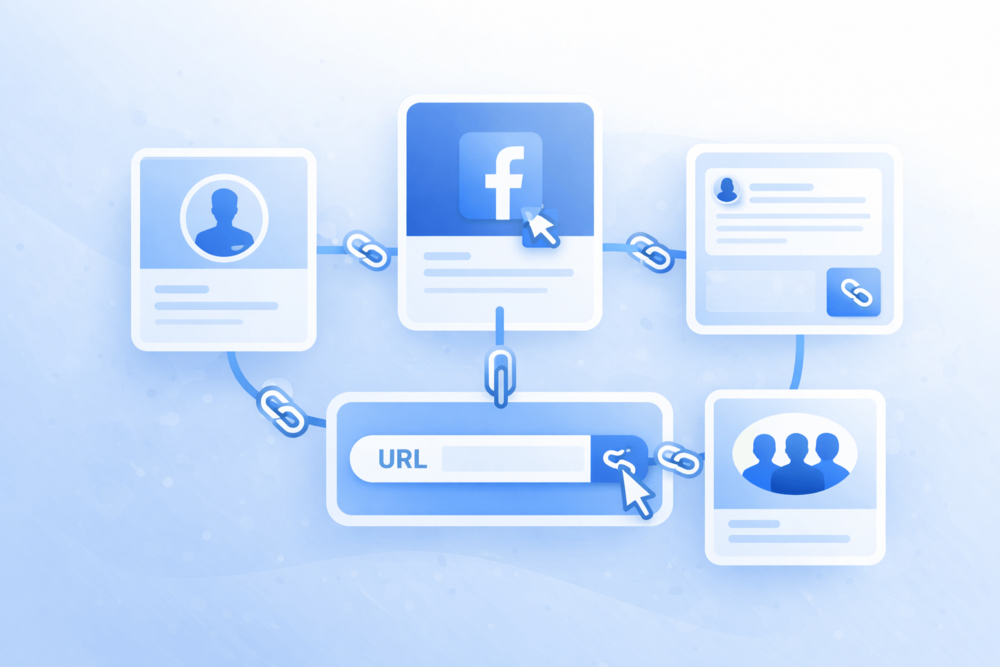
A Facebook URL is the direct web link to a specific piece of content on Facebook. This can be a personal profile, a business page, a post, or a group. When someone opens that link, they land on the exact content you intended to share.
As users rely more on direct sharing instead of search, links are often passed through messages, bios, and external platforms. This shift reflects broader changes in how Facebook content is shared and discovered today, where visibility often depends on how easily a link can be opened and understood
Most Facebook URLs include a username, which makes them short and easy to recognize. If an account or page doesn’t have a username, Facebook uses a numeric ID instead. Both types work the same, but username-based links are cleaner and easier to share.
Understanding what type of URL you’re looking for makes the next steps much simpler. Once you know whether you need a profile, page, or post link, finding it only takes a few clicks.
How to Find a Facebook Profile URL
A Facebook profile URL links directly to a personal account. You might need it to share your profile, link it on another platform, or send it to someone who can’t find you through search.
On Desktop
- Open Facebook in your web browser
- Go to the profile you want to link
- Look at the address bar at the top of the page
- Copy the full URL
If the profile has a custom username, the link will be short and readable. If not, you’ll see a longer URL with numbers, which still works the same way.
On Mobile
- Open the Facebook app
- Go to the profile
- Tap the three dots next to the profile name
- Select Copy link
The copied link is the profile’s official Facebook URL. You can paste it anywhere you need without modifying it.
Having the right profile URL is especially useful when sharing your presence across platforms or connecting it to other online profiles. The process is slightly different for pages, which we’ll cover next.
How to Find a Facebook Page URL
A Facebook Page URL points to a business, brand, or creator page. These links are often used for promotions, websites, and customer communication, so copying the correct one matters.
On Desktop
- Open Facebook in your browser
- Go to the Facebook Page
- Look at the address bar at the top
- Copy the full URL
Most pages use a custom username, which keeps the URL short and easy to recognize. If a page doesn’t have one, Facebook will show a numeric ID instead.
On Mobile
- Open the Facebook app
- Go to the Page
- Tap the three dots near the page name
- Select Copy link
You can now paste this link wherever you need it. This is especially helpful when you’re using Facebook pages as part of a business strategy, where consistent and accurate links make a real difference.
Next, we’ll look at Facebook groups, which work a bit differently depending on their privacy
How to Find a Facebook Group URL
A Facebook group URL links directly to a group’s main page. You might need it to invite new members, share the group outside Facebook, or reference it in messages or posts.
On Desktop
- Open Facebook in your browser
- Go to the group
- Look at the address bar at the top
- Copy the full URL
If the group is public, anyone with the link can open it. If it’s private, only approved members will be able to view the content after clicking the link.
On Mobile
- Open the Facebook app
- Go to the group
- Tap the three dots in the top corner
- Select Copy link
The copied link is the group’s official URL. Keep in mind that private groups still have URLs, but visibility depends on the group’s settings.
Once groups are covered, the next step is finding URLs for individual posts, which is one of the most common reasons people look for Facebook links in the first place.
How to Find a Facebook Post URL
A Facebook post URL takes someone directly to a specific post, rather than a profile or page. This is useful when you want to share a single update, image, video, or listing without sending people to an entire feed.
On Desktop
- Open Facebook in your browser
- Find the post you want to share
- Click the timestamp under the post
- Copy the URL from the address bar
Clicking the timestamp opens the post on its own page, which ensures you’re copying the correct link.
On Mobile
- Open the Facebook app
- Find the post
- Tap the three dots in the top corner of the post
- Select Copy link
This creates a direct link to that post. It’s especially helpful when sharing Marketplace listings outside Facebook, since it sends people straight to the item instead of a general page.
In the next section, we’ll look at what to do when Facebook doesn’t show a clear link at all.
Common Problems When Copying Facebook URLs
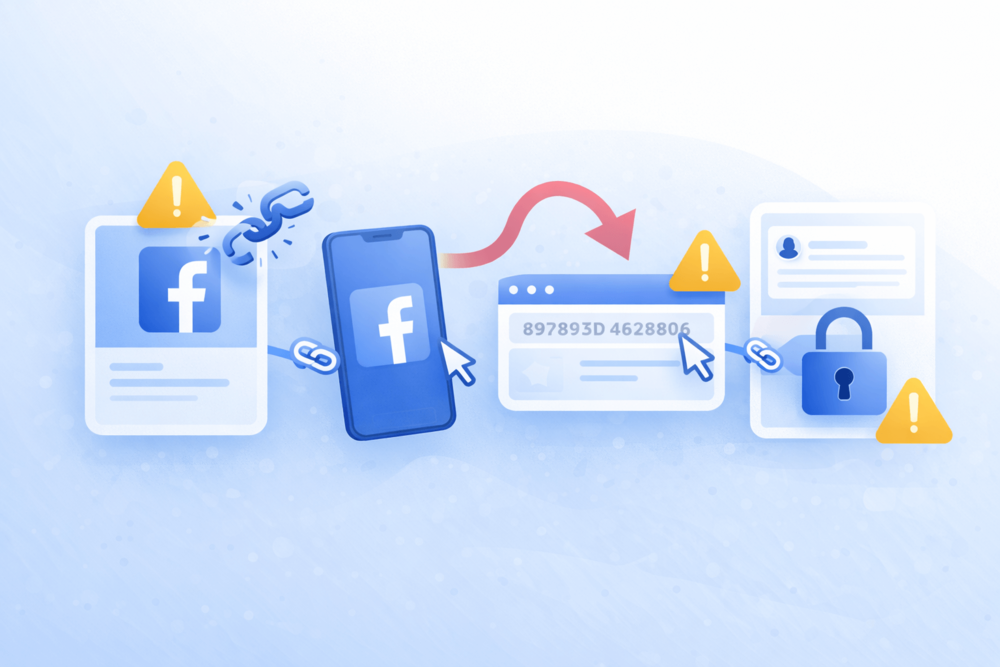
Even when you know where to look, Facebook URLs don’t always behave the way you expect. Most issues fall into a few predictable categories.
Facebook has also adjusted how sharing options appear across desktop and mobile over time. Some links are now hidden behind menus or icons to reduce clutter, while others are easier to copy directly from posts.
These changes are part of recent Facebook updates around sharing and discovery, which aim to simplify how users create, share, and access content.
Issues people run into most often
- The link opens inside the Facebook app instead of a browser
- The URL looks extremely long or full of random numbers
- The copied link doesn’t work for other people
- The page or post opens, but not the exact content
- Privacy settings block access after sharing
These problems are common and usually easy to fix once you know what’s causing them.
Why Facebook links sometimes don’t work
| Problem | Why it happens |
| App-only links | Facebook opens content in its own browser |
| Numeric URLs | The profile or page has no username |
| Access denied | The content is private or restricted |
| Redirected links | The link was copied too early or from a preview |
| Broken previews | The post wasn’t opened on its own page |
Quick fixes that usually solve the issue
- Open the content in a regular browser before copying the link
- Click the post timestamp to load it on its own page
- Double-check privacy settings before sharing
- Test the URL in an incognito window
- Avoid copying links from previews or notifications
Getting these small details right matters more than people think, especially when links are shared publicly or used outside Facebook.
This is also why accurate URLs play a role in ways people monetize Facebook profiles and pages, where broken links can cost visibility or clicks.
With the common issues out of the way, we can now wrap everything up with a clear takeaway on finding the right Facebook URL every time.
Final Thoughts
Finding a Facebook URL is simple once you know where to look. Whether you’re sharing a profile, page, or post, the right link is always just a few clicks away when you open the content properly.
Most issues come down to app layouts, hidden menus, or privacy settings. Once those are sorted, copying and sharing Facebook URLs becomes quick and frustration-free.
👉 Want Your Facebook Posts to Get More Attention?
Sharing the right link is only the first step. If you want your posts to feel active, visible, and worth engaging with, early interaction makes a big difference.
Bulkoid helps boost Facebook posts with real engagement, so your content doesn’t get buried right after you share it. If you want your links to actually perform, buy Facebook likes with Bulkoid and give your posts the momentum they need from the start.