What does restricted mean on Facebook is a common question for users trying to control who sees their posts without causing tension. The Restricted feature lets you limit a friend’s access to your content while keeping them on your friends list.
Restricted friends only see your public posts and are not notified of the change. This makes it a quiet, reversible way to manage privacy without blocking or unfriending someone.
In the sections below, you’ll learn exactly how Restricted works, what it limits, and how it compares to other Facebook privacy options.
What Does Restricted Mean on Facebook?

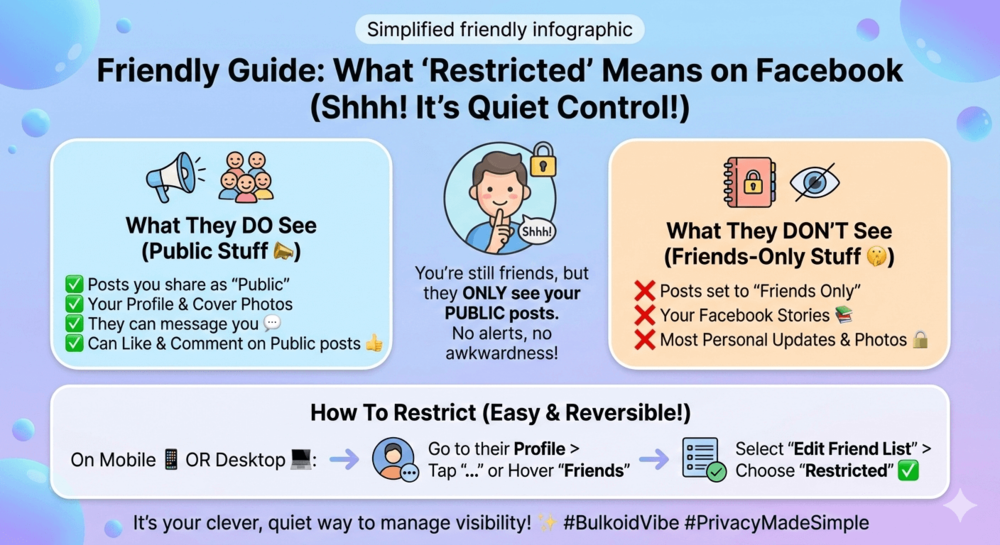
When you restrict someone on Facebook, they remain on your friends list, but their access to your content is limited. This setting is designed to give you more control over who sees your posts without alerting the other person.
According to Facebook’s own privacy documentation, Restricted friends only see content shared publicly.
Restricted friends can only see posts you share publicly. Any posts set to Friends, including most personal updates and photos, are hidden from them. They also do not see your Friends-only stories.
From their point of view, nothing looks different. They are still listed as your friend, they can visit your profile, and Facebook does not send any notification when you add someone to your Restricted list.
This makes the Restricted feature a subtle privacy tool. It helps you manage visibility and avoid awkward situations while keeping your account settings flexible and easy to change later.
What Happens When You Restrict Someone on Facebook

Restricting someone on Facebook changes what they can see, but it does not completely cut off interaction. The goal is to reduce visibility without making the change obvious.
Once restricted, that person:
- Can only see posts you share publicly
- Cannot see Friends-only posts or most personal updates
- Will not see Friends-only stories
They can still:
- Visit your profile
- Like or comment on public posts
- Send you messages through Messenger
Your past posts also follow the same rules. Anything that was shared with Friends only will no longer be visible to them, while public posts remain accessible.
Importantly, Facebook does not notify users when they are restricted. From their side, your profile still looks normal, which is why this feature is often used to quietly manage privacy without unfriending or blocking someone.
Visibility plays a big role in how posts perform on Facebook. Info shared by Hootsuite shows that public posts with early engagement are more likely to reach wider audiences, which is why audience settings matter as much as the content itself.
Once you understand who can see your updates, the next step is deciding what to share.
Knowing which types of Facebook posts drive engagement and visibility helps you make the most of your public content while keeping personal updates private.
Restricted vs Blocked vs Unfollowed vs Unfriended
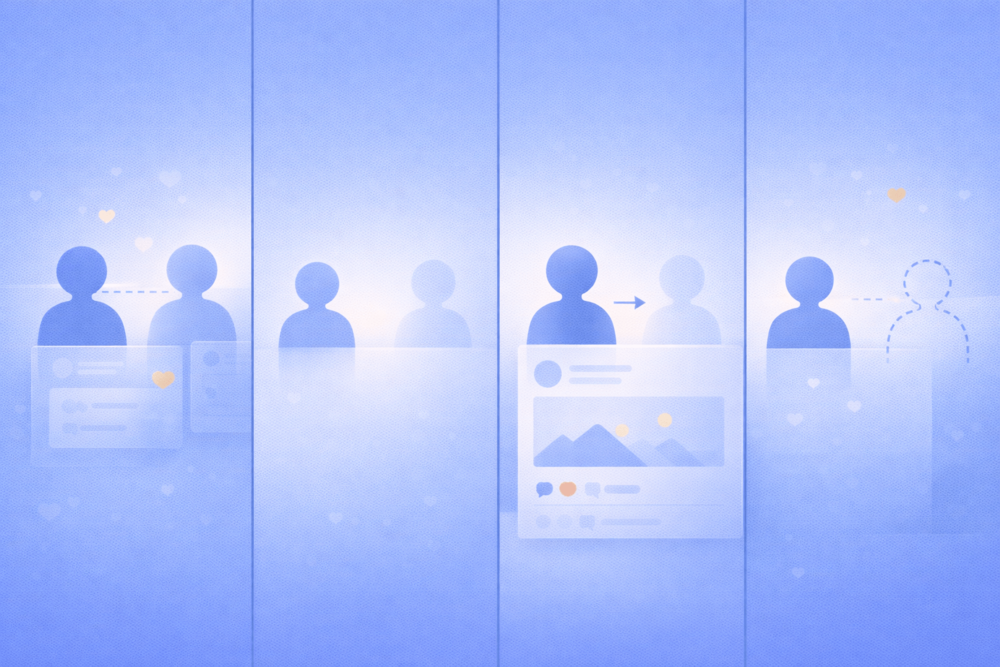
Facebook offers several ways to manage connections, and each option affects visibility and interaction differently.
Understanding the differences helps you choose the right one without limiting more than necessary.
Restricted
- The person stays on your friends list
- They only see your public posts
- Friends-only posts and stories are hidden
- They can still message you
- No notification is sent
Best for limiting visibility without causing tension.
Blocked
- The person is completely removed from your Facebook experience
- They cannot see your profile or posts
- You cannot see their profile either
- Messaging is disabled
- Blocking is obvious if they search for you
Best for stopping all contact.
Unfollowed
- You stay friends
- You no longer see their posts in your feed
- They still see your posts based on your privacy settings
- No effect on messaging or profile visibility
Best for cleaning up your feed without changing the relationship.
Unfriended
- You are removed from each other’s friends lists
- They only see your public posts
- Friends-only content is hidden
- Messaging may still be possible depending on settings
Best for ending the connection without fully blocking someone.
Privacy settings are especially important if you use Facebook for buying or selling.
Social media experts at Social Media Examiner often point out that choosing between restricting, unfollowing, or blocking depends on your goal, whether that’s reducing visibility, cleaning up your feed, or cutting contact entirely.
Learning how to sell on Facebook Marketplace without exposing your personal profile allows you to stay visible to buyers while keeping control over who sees your everyday posts.
How to Restrict Someone on Facebook
You can restrict someone on Facebook in just a few steps, and the process is easy to reverse at any time.
On Mobile (Facebook App)
- Open the Facebook app and go to the person’s profile
- Tap the three dots near their name
- Select Friends
- Tap Edit Friend List
- Choose Restricted
The person is added instantly, and they will not be notified.
On Desktop
- Go to Facebook on your browser
- Open the person’s profile
- Hover over Friends
- Click Edit Friend List
- Select Restricted
Changes apply right away, with no alert sent to the other user.
How to Remove Someone From the Restricted List
If you change your mind, repeat the same steps and uncheck Restricted. Once removed, the person will see your Friends-only posts again.
This flexibility makes the Restricted feature a low-risk way to adjust your privacy as relationships change.
Grow Your Facebook Reach With the Right Support
Managing your privacy is important, but growth still matters if you want your posts to reach the right audience. Once you control who sees your content, the next step is making sure it gets noticed.
If you’re building a page, promoting a business, or trying to increase engagement, buying Facebook followers, likes, or post engagement can give your content a stronger starting point.
When used alongside consistent posting and real interaction, growth services can help you improve visibility and social proof.
Final Thoughts
Facebook’s Restricted feature gives you quiet control over your privacy. It lets you limit what someone sees without removing them as a friend or creating awkward situations.
If you’re unsure which option to use, Restricted sits comfortably between staying fully connected and cutting someone off completely. It is easy to apply, easy to undo, and works in the background without notifications or alerts.
Understanding tools like this helps you shape your Facebook experience on your own terms. With the right privacy settings in place, you can focus on sharing, engaging, and growing your presence with confidence.